
Getting Started
CSSFlow is a custom CSS manager for WordPress. It keeps your CSS organized in named snippets and lets you control where each snippet should load.
After activation, open CSSFlow → All CSS to manage snippets or CSSFlow → Add CSS to create one. You can also use the Manage CSS shortcut on the WordPress Plugins screen.
Create Your First CSS Snippet
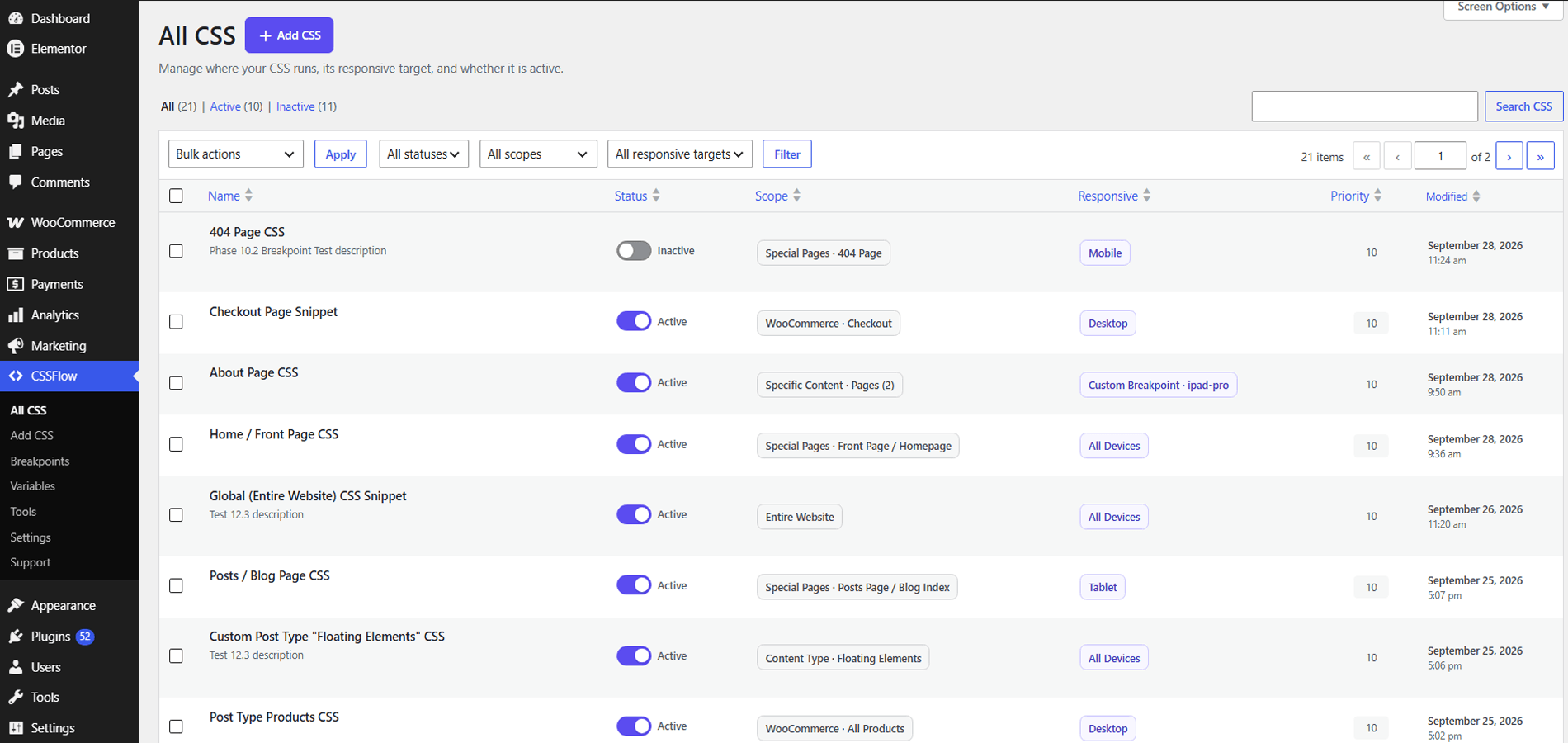
- Open CSSFlow → Add CSS.
- Enter a clear snippet name, such as Site Heading Style.
- Add your CSS in the editor.
- For a first test, choose Entire Website.
- Choose All Devices.
- Save the snippet, review it, and activate it when ready.
- Open the frontend and refresh the matching page to check the result.
.site-title {
	font-size: 2rem;
}
You can return to All CSS at any time to edit, duplicate, activate, deactivate, or delete the snippet.
Managing CSS Snippets
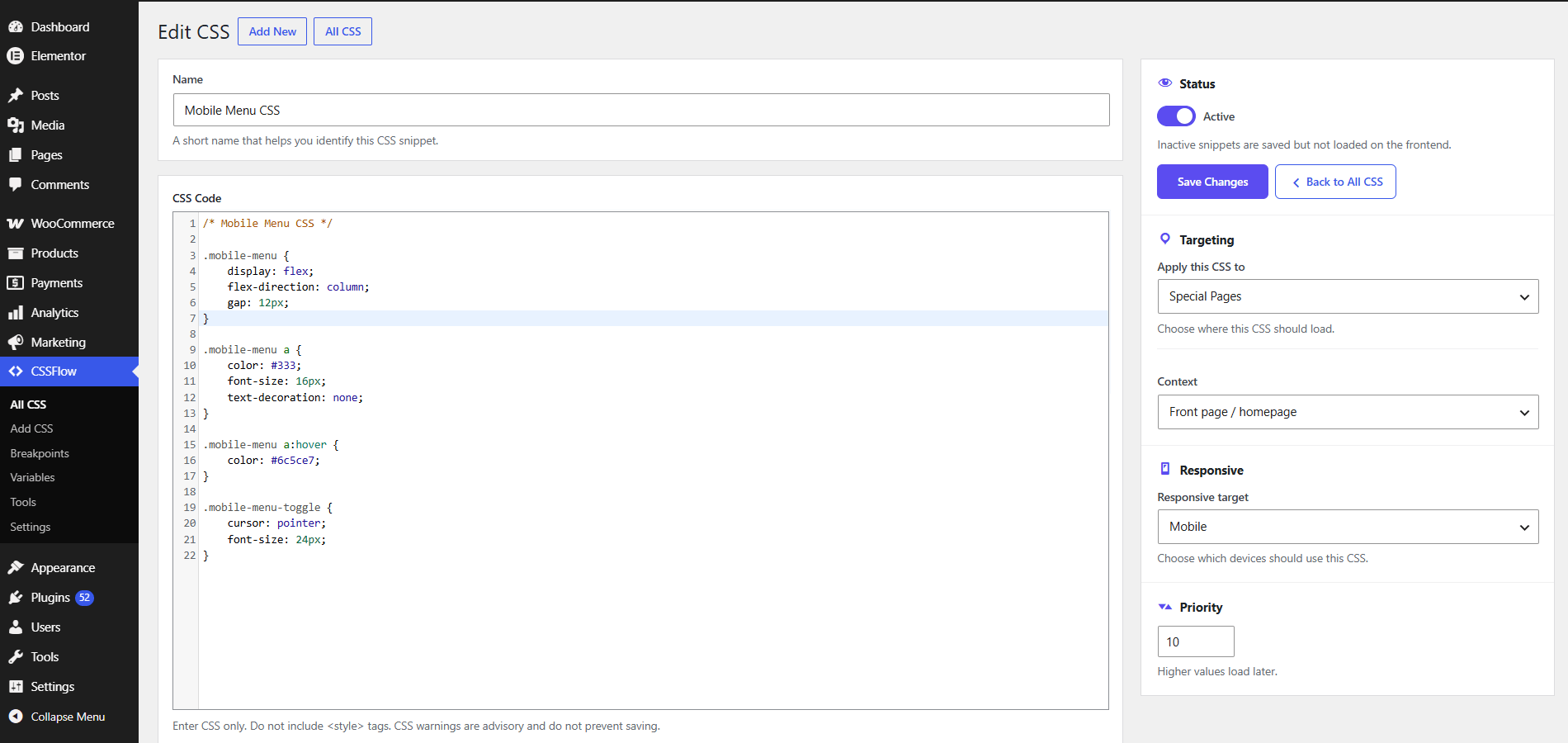
The All CSS screen is the main management area. Use the All, Active, and Inactive views to focus on the snippets you need. The counts update with the current snippet state.
Find the right snippet
Use search plus the Status, Scope, and Responsive filters to narrow the list. Sorting and pagination help keep larger snippet libraries manageable, and WordPress Screen Options lets you control how many snippets appear per page.
Available actions
- Status toggle: activate or deactivate a snippet directly from the list.
- Edit: open the snippet and change its CSS or settings.
- Duplicate: create an inactive copy that you can adjust safely.
- Delete: permanently remove the selected snippet.
- Bulk actions: activate, deactivate, or permanently delete multiple snippets together.
CSSFlow shows success or error notices after management actions so you can confirm what happened.
Creating & Editing CSS
Each snippet has a name, CSS source, status, priority, targeting rule, and responsive target. The editor keeps these controls together so you can understand where the CSS will load before activating it.
CSS editor
CSSFlow uses the WordPress enhanced CSS editor when it is available and enabled. If it is unavailable, or syntax highlighting is disabled for the current WordPress user, the original textarea remains available as the fallback.
CSS Problems
The CSS Problems panel can point out likely mistakes such as unmatched braces, a missing selector, or a likely missing semicolon. The checks are advisory and do not act as a complete CSS validator or hard-block saving.
Status and priority
Keep a snippet Inactive while preparing it, then activate it when ready. Priority controls source order within CSSFlow's normal cascade flow.
!important still matter.
Targeting CSS
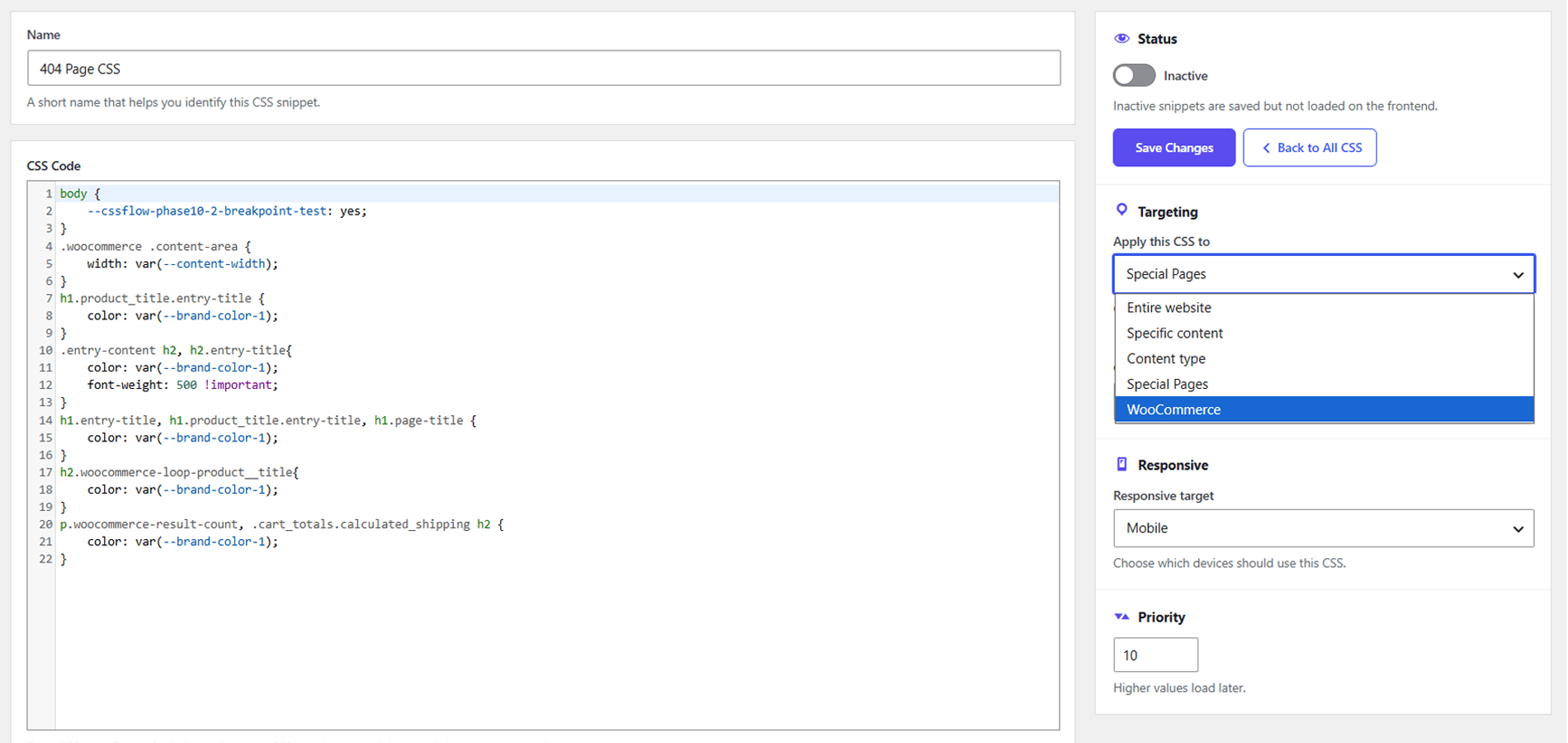
Targeting answers one simple question: where should this snippet apply?
Entire Website
Use this for CSS that should be available across the whole frontend site, such as a shared typography or button adjustment.
Specific Content
Use this when CSS belongs only on selected pages, posts, or supported public content items. Choose a content type first, then use the search interface to find and select the items you need.
Content Type
Use this when one snippet should apply to every item of a selected public post type. For example, you might apply one style to all Pages without applying it to Posts.
Special Pages
Use this for the Front Page, Posts Page / Blog Index, Search Results, or the 404 Page.
WooCommerce Targeting
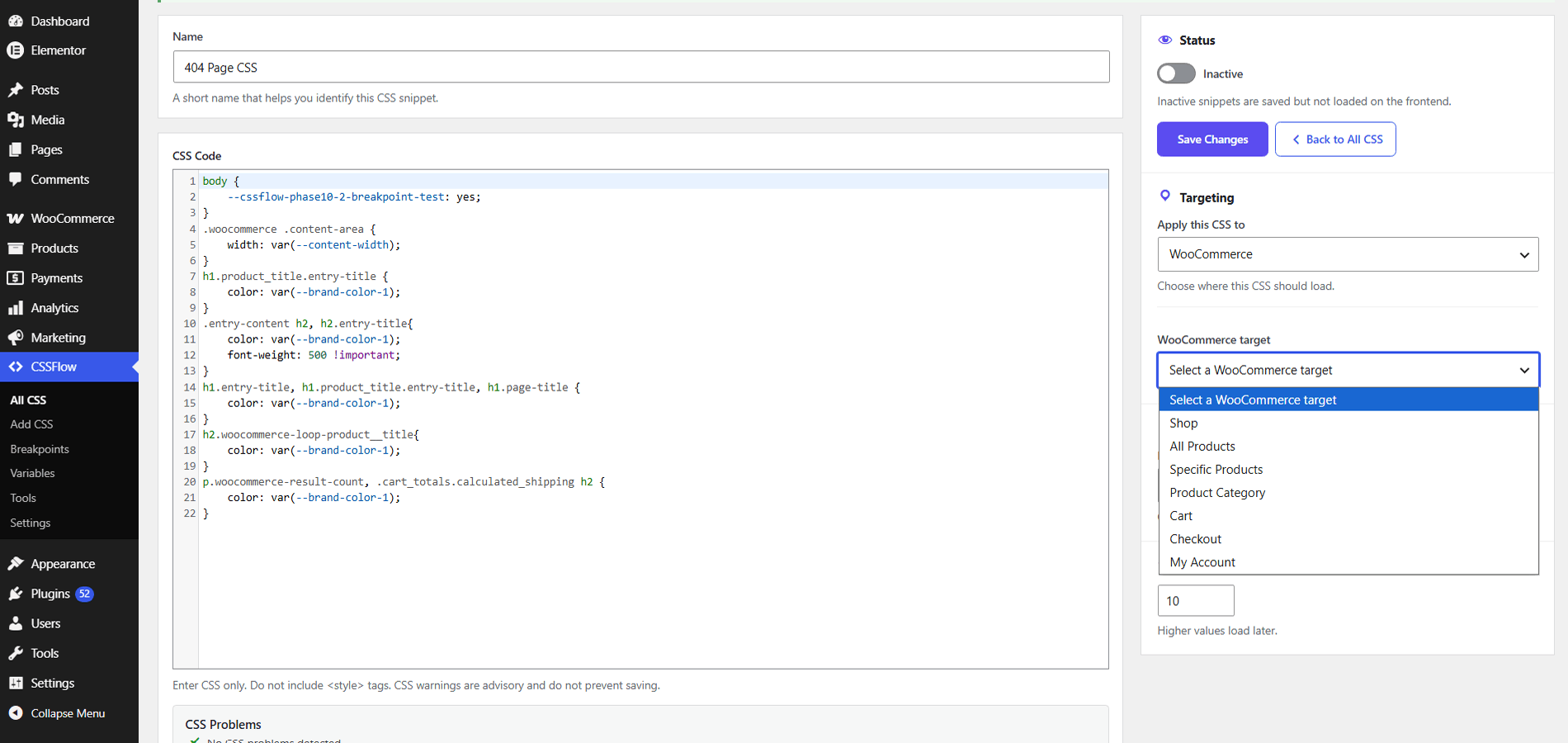
WooCommerce targeting appears only while WooCommerce is available. It uses WooCommerce-aware contexts instead of treating every store screen as an ordinary WordPress page.
Responsive CSS
Every snippet uses one responsive target. CSSFlow resolves the current breakpoint values and creates the required media-query wrapper for responsive snippets.
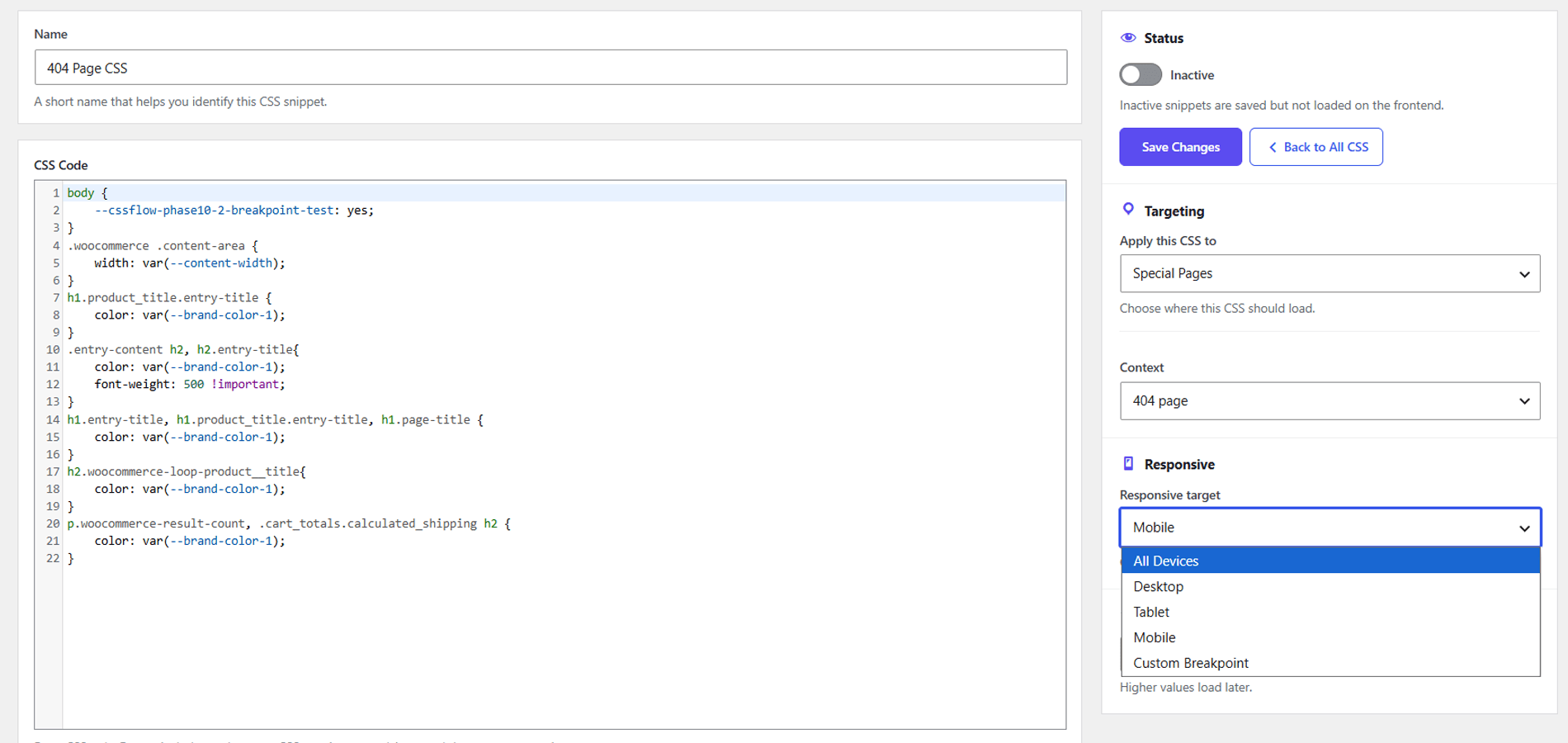
Targeting and responsive settings work together. For example, a snippet can target a specific page and apply only inside the Mobile range.
Breakpoints
Open CSSFlow → Breakpoints to review or edit responsive ranges or create a reusable custom breakpoint.
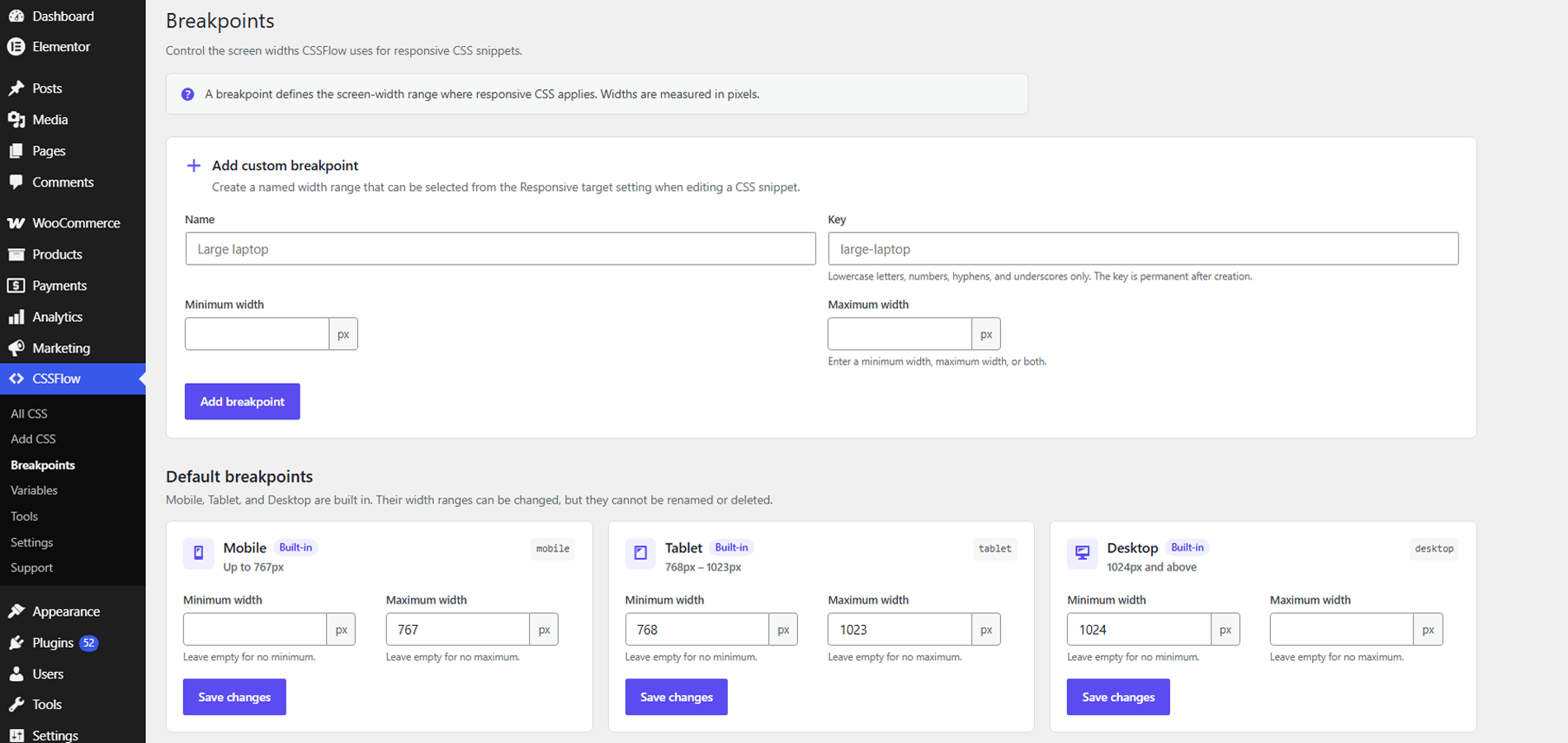
| Breakpoint | Default range |
|---|---|
| Mobile | Up to 767px |
| Tablet | 768px to 1023px |
| Desktop | 1024px and above |
Custom breakpoints
A custom breakpoint can use a minimum width, maximum width, or both. Its key is a stable internal reference used by snippets, so the key is not changed after creation.
CSS Variables
CSSFlow variables are reusable global CSS custom properties. They are useful when the same value is used in several snippets and you want one place to manage it.
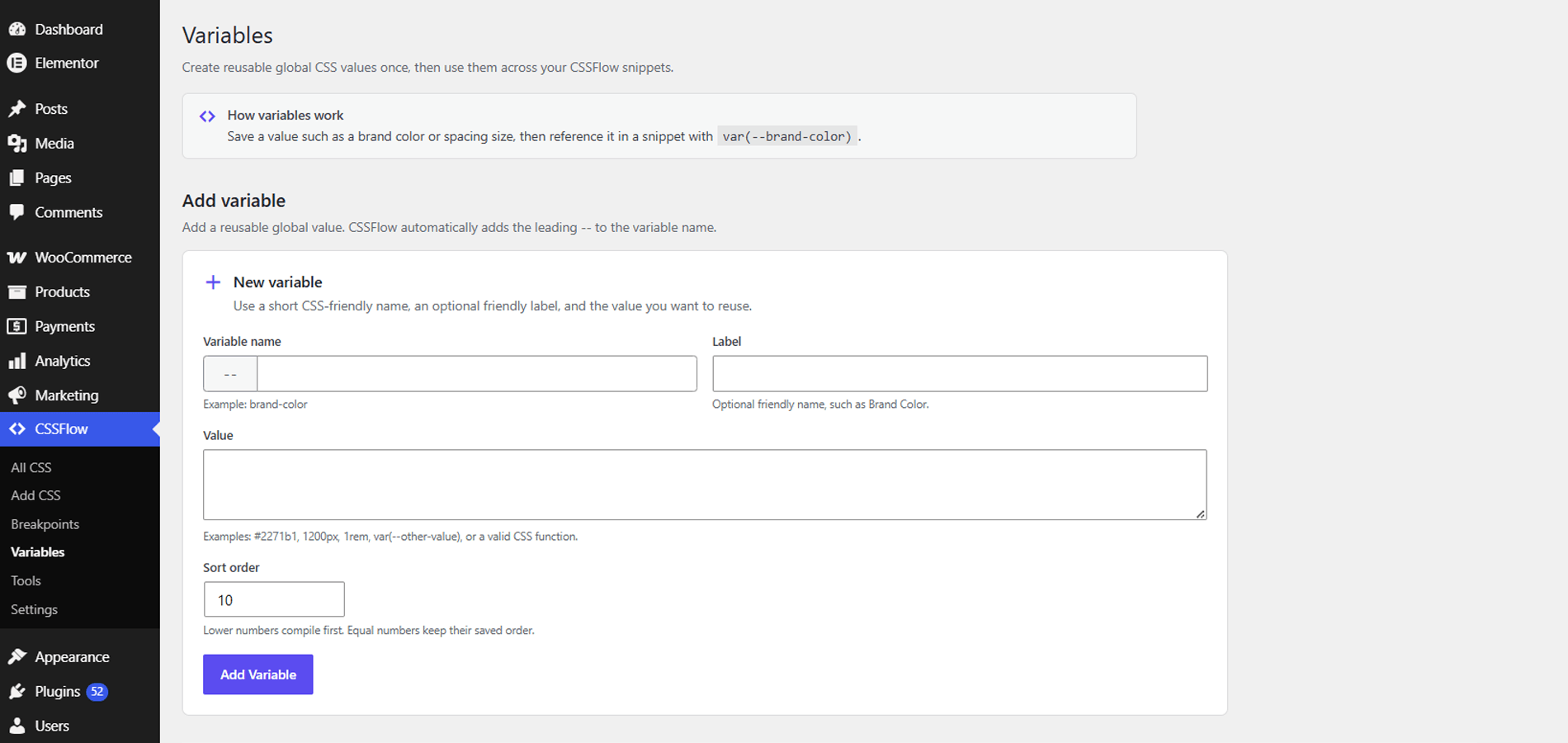
Variable fields
- Name: stored without the leading
--. - Label: optional human-readable description.
- Value: the CSS value the variable should represent.
- Sort Order: controls the variable's order inside the generated
:rootblock.
.button {
	background: var(--brand-color);
	padding: var(--button-spacing);
	max-width: var(--content-width);
}
Values can include colors, pixels, rem units, percentages, unitless values, calc(), gradients, var() references, and quoted strings.
Supported direct color values display a visual swatch, while normal non-color values remain text-only.
Tools, Backup & Migration
The Tools screen groups maintenance, portability, and migration features in one place.
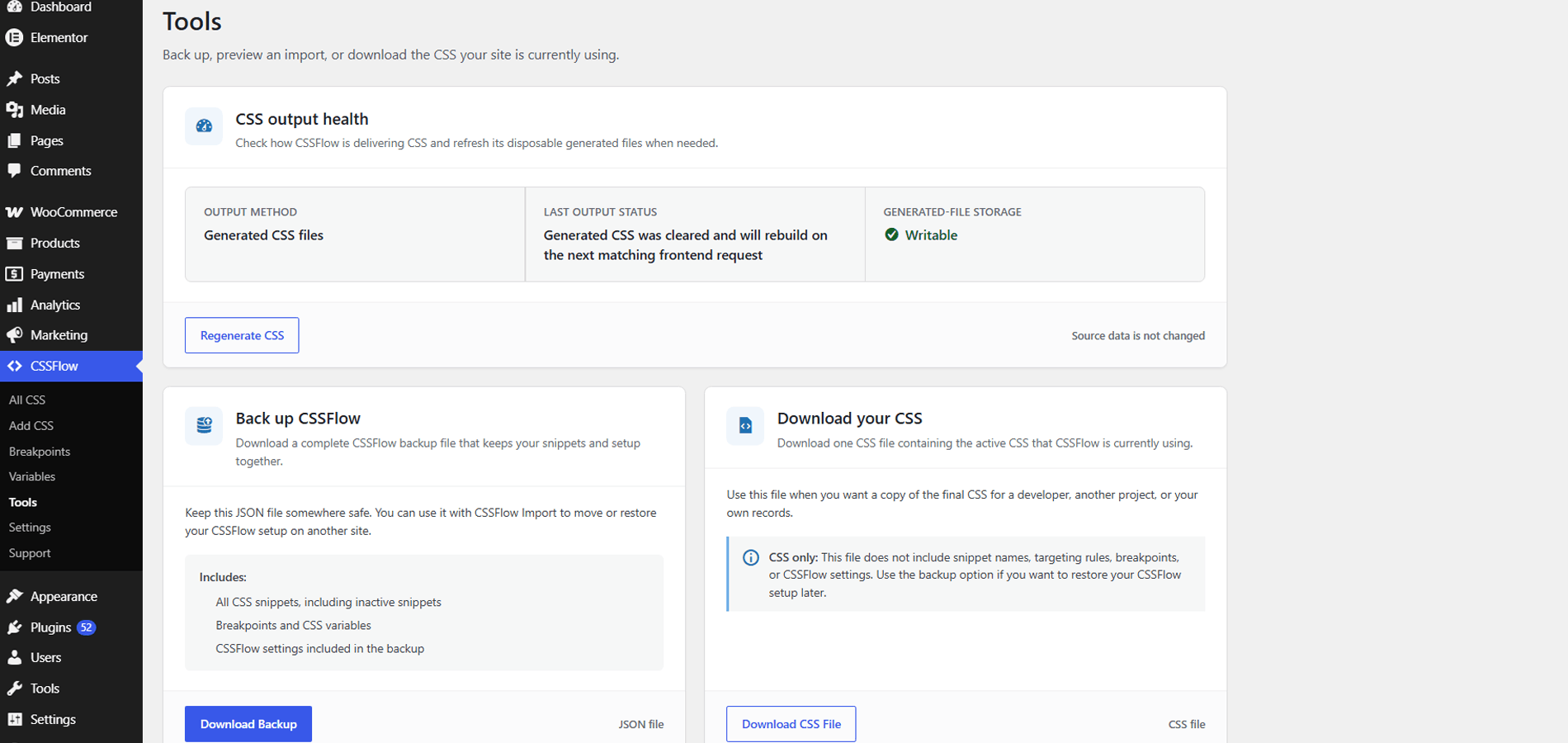
Output Health
Review the configured output method, generated-output state, and whether generated-file storage is writable.
Regenerate CSS
Regenerate CSS clears CSSFlow's disposable generated output and marks it for rebuilding. It does not delete your snippets, variables, breakpoints, or settings.
JSON backup and import
A full JSON backup contains CSSFlow snippets plus portable configuration such as breakpoints, variables, and settings. Import first shows a read-only preview before any commit is allowed.
When a same-name snippet conflict is found, you can import it as a new copy, replace the matching destination snippet, or skip it. Import as new copy is the default conflict choice.
Compiled CSS download
The CSS download contains frontend-effective compiled CSS for portability. It is not a restorable CSSFlow backup because it does not contain the full targeting and administration metadata.
WordPress Additional CSS
CSSFlow can detect and preview the current theme's WordPress Additional CSS. Import creates a new Entire Website / All Devices CSSFlow snippet that starts Inactive.
Settings & CSS Output
Generated CSS Files
This is the default output method. CSSFlow builds contextual CSS below the WordPress uploads area and loads the applicable generated file through normal WordPress stylesheet APIs.
Inline CSS
Use this when you prefer CSSFlow to attach the compiled CSS inline instead of writing generated external files.
Automatic fallback
If generated-file output cannot be written safely, CSSFlow can fall back automatically to inline output so saved CSS can continue to load.
Enhanced Code Editor
Enable or disable CSSFlow's enhanced editor preference. CSSFlow also respects the current WordPress user's syntax-highlighting preference, and the normal textarea remains the fallback.
Delete data on uninstall
This is a destructive preference and is disabled by default. Enable it only if you want WordPress plugin deletion to remove CSSFlow-owned data.
Safe Mode
Safe Mode temporarily stops CSSFlow user CSS from being output on the frontend while keeping CSSFlow active and its administration screens available.
Use it when you need an emergency way to confirm whether CSSFlow output is involved in a frontend styling problem.
Add this to wp-config.php before the line that tells WordPress to stop editing:
define( 'CSSFLOW_SAFE_MODE', true );To turn Safe Mode off, remove the line or change true to false.
Troubleshooting & Site Health
If CSS is not appearing where expected, work through these checks in order.
1. Confirm the snippet is Active
An Inactive snippet remains saved but does not contribute CSS to normal frontend output.
2. Check the targeting rule
Make sure the current page matches Entire Website, the selected content, content type, Special Page, or WooCommerce context.
3. Check the responsive target
Confirm that the current viewport falls inside the selected Mobile, Tablet, Desktop, or custom breakpoint range.
4. Check normal CSS cascade rules
If the snippet is loading but the visual result is different, another selector may have stronger specificity or a later/important declaration may be winning.
5. Refresh caches
Refresh the browser and any site, host, CDN, or optimization cache used by the site.
6. Review Output Health
Open CSSFlow → Tools and review the output method, generated state, and write status.
7. Regenerate CSS
Use Regenerate CSS when generated output needs rebuilding. The next matching frontend request rebuilds the required output.
8. Check the enhanced editor
If the enhanced editor is not showing, review the CSSFlow editor preference and the current WordPress user's syntax-highlighting preference. A normal textarea should still be available.
9. Check WooCommerce availability
WooCommerce-specific targeting controls appear only when WooCommerce is available. Existing WooCommerce-targeted data is preserved if WooCommerce later becomes inactive.
10. Review Site Health or use Safe Mode
Open Tools → Site Health → Info for CSSFlow diagnostic information. If needed, use Safe Mode to suppress CSSFlow frontend output temporarily without deleting data.
Data Safety & Uninstall
CSSFlow keeps snippet records and configuration in WordPress. Generated CSS files are disposable compiled output and are not the source of truth.
Deactivation
Deactivating CSSFlow does not delete snippets, variables, breakpoints, or settings.
Uninstall
Uninstall cleanup is destructive only when Delete all CSSFlow data on plugin deletion has been explicitly enabled. With the preference disabled, uninstall keeps CSSFlow data.
Developer Guide
CSSFlow keeps a small public extension surface around stable architecture points. In CSSFlow 1.0.0, the supported public API consists of filters rather than a large set of action hooks.
Architecture overview
On the frontend, CSSFlow resolves the current request, evaluates registered targeting providers, collects matching Active snippets, applies responsive compilation and deterministic ordering, then sends the final CSS through the configured output method.
Snippet records and WordPress options remain the source of truth. Generated CSS files are disposable output and can be rebuilt.
| Filter | Purpose |
|---|---|
cssflow_edit_capability | Change the capability used for CSSFlow CSS-management actions. |
cssflow_max_snippet_size | Change the maximum permitted CSS snippet size. |
cssflow_max_variable_value_size | Change the maximum permitted CSS variable value size. |
cssflow_registered_scopes | Register or modify targeting scope providers. |
cssflow_snippet_before_compile | Filter snippet CSS before responsive compilation. |
cssflow_snippet_after_compile | Filter a snippet after it has been compiled. |
cssflow_compiled_css | Filter the final CSS generated for the current request. |
cssflow_support_links | Modify links displayed in CSSFlow support/resources areas. |
Support, Security & FAQ
Support
For CSSFlow support, email [email protected]. Include the problem, steps to reproduce it, your WordPress and PHP versions, and any relevant CSSFlow Output Health or Site Health information.
Security reports
Do not publish vulnerability details publicly. Send private security reports to [email protected]. Include the affected CSSFlow version, clear reproduction steps, and the impact you observed. Do not send sensitive production credentials.
Does CSSFlow change my theme files?
No. CSSFlow stores its own data and outputs CSS without editing theme files.
Can I target individual pages, posts, or products?
Yes. CSSFlow supports specific-content targeting along with broader WordPress and WooCommerce contexts.
Does CSSFlow require WooCommerce?
No. WooCommerce targeting appears only when WooCommerce is available.
Can I use CSSFlow without the enhanced code editor?
Yes. CSSFlow can use a normal textarea fallback, and the enhanced editor can also be disabled through CSSFlow Settings.
What happens if generated CSS files cannot be written?
CSSFlow can fall back automatically to inline output so saved CSS can continue to load.
Does deactivating CSSFlow delete my data?
No. Deactivation preserves CSSFlow data.
Does CSSFlow add JavaScript to the frontend?
No. CSSFlow does not require or enqueue frontend JavaScript.
Does CSSFlow send telemetry?
No. CSSFlow does not include telemetry or remote tracking.
Documentation for CSSFlow 1.0.0