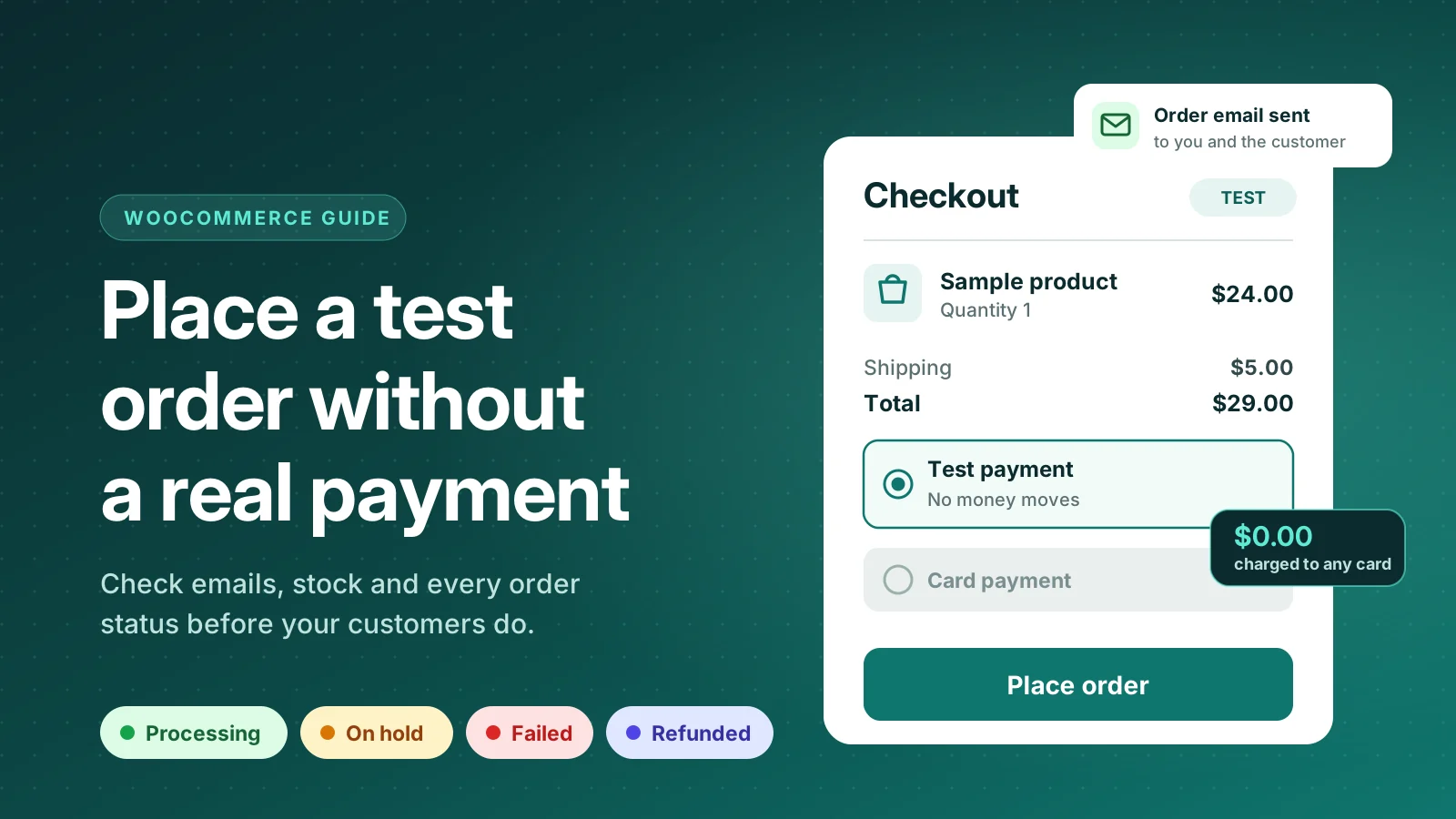
To place a WooCommerce test order without paying, you need a way through checkout that doesn't charge a card. There are four: WooCommerce's built-in Check payments method, a 100% discount coupon, your payment gateway's test mode, or a test payment method that only you can see.
On a live store, the last one is the safest. The first three either affect real customers while they're switched on, or skip the parts of checkout you're trying to test.
A checkout can look fine and still be broken. The order email lands in spam. A failed payment shows a message nobody understands. Stock drops for an order that was never paid. Most store owners find out about these problems the same way: a customer tells them.
A test order lets you find them first. This guide covers the four ways to place a WooCommerce test order, which emails each order status should send, and a short checklist to run before you call your checkout done.
What a test order should prove
"I placed an order and it worked" is not a real test. A good WooCommerce test order answers six questions:
- Does the order reach the right status? Processing for a paid order, On hold for bank transfer, Failed when a payment is refused.
- Do the right emails arrive? Both the one you get and the one your customer gets, and they don't land in spam.
- Does stock change the way you expect? It should go down for paid orders and come back for cancelled ones.
- Are the totals right? Shipping, tax and coupons add up to what you'd charge by hand.
- Is the thank-you page correct? Order number, address, delivery method and payment instructions all show.
- What happens when it goes wrong? A failed payment should give the customer a clear message and a way to try again.
The last one is the test most people never run, and it's the one customers hit when their card is declined.
4 ways to place a WooCommerce test order
Here's how the four methods compare before we look at each one.
| Method | Charges money? | Safe on a live store? | Tests failed payments and refunds? |
|---|---|---|---|
| Check payments | No | No (customers can choose it too) | By hand |
| 100% coupon | No | Mostly (if the code is restricted) | No (the payment step is skipped) |
| Gateway test mode | No (test cards only) | No (real customers can't pay) | Yes (for that gateway) |
| Test payment method only you see | No | Yes | Yes (you choose the result) |
1Use the Check payments method
WooCommerce comes with an offline payment method called Check payments, meant for stores that accept paper cheques. Switch it on under WooCommerce > Settings > Payments (it's listed with the offline payment methods), place your order and choose it at checkout. The order arrives as On hold, as if you were waiting for the cheque.
It also only gives you On hold. To see what a Processing or Completed order looks like, you have to open the order and change its status by hand. Changing the status does send the matching email, which is useful, but it isn't the same as a customer going through checkout. If you use this on a live store, switch it off the moment you're done.
2Use a 100% discount coupon
Go to Marketing > Coupons, add a coupon with a percentage discount of 100 and tick "Allow free shipping" if your order needs shipping (otherwise you'll still owe the delivery cost). When the order total is zero, WooCommerce skips the payment step and the order goes straight to Processing.
Under Usage restriction, add your own email to "Allowed emails" and set a usage limit, so the code is useless if it ever leaks. Also expect the coupon's usage count to go up with every test.
3Switch your payment gateway to test mode
Stripe, PayPal, WooPayments and most other gateways have a test or sandbox mode with special card numbers that never charge anyone. This is the only way to test that provider's real payment screens, including extra card checks and declined cards.
Use it on a staging copy of your site, or for a few minutes at a quiet time. And switch it back. A gateway left in test mode is one of the most common reasons a store "takes orders" but no money ever arrives.
4Use a test payment method that only you can see Safest on a live store
A test-order plugin adds an extra payment method that appears only for store managers. Customers keep seeing your normal methods and never see the test one. You go through your real checkout page, place the order, and no money moves.
Several free plugins do this. Most of them mark every test order Completed and stop there. That's enough to check that the checkout page works, but not to test what happens when a payment fails, waits for bank transfer or gets refunded.
I built Checkout Test Lab, a free plugin, to cover those cases. You choose what the payment should do before you start: Processing, Completed, On hold, Pending payment, Failed, Cancelled or Refunded. The next section shows how it works.
Step by step: a WooCommerce test order that only you can see
This takes about two minutes the first time. It works the same on the classic checkout and the newer block checkout.
- Install the pluginIn your dashboard, go to Plugins > Add New, search for "Qasim Checkout Test Lab" and install it. You can also download it from its WordPress.org page. There's nothing to set up afterwards.
- Open WooCommerce > Test LabA product is already picked for you, and you're set as the customer. Change the product, the quantity or the customer's country, state and postcode if you want to test a different order.
- Choose what the payment should doPick one of the seven results. Under More options you can choose whether stock should change, whether order emails are sent, and when test orders are removed.

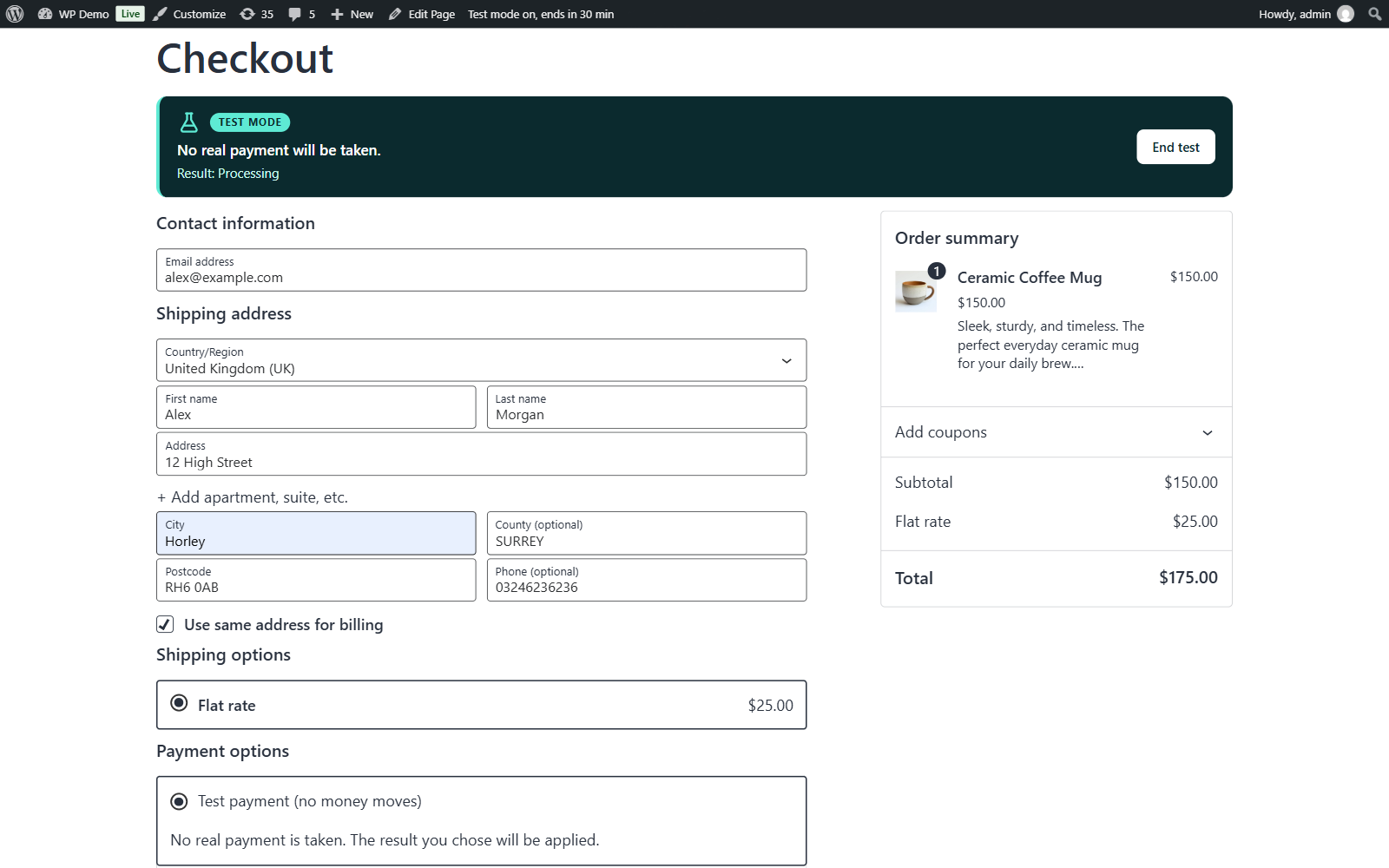
- Press Start test checkoutYou land on your normal checkout page. A notice at the top reminds you that you're in test mode, and a payment method called "Test payment (no money moves)" appears. Only you can see it.
- Place the order like a customer wouldFill in or check the details and press the order button. If you chose Failed, you'll see the error your customers would see, and test mode stays on so you can try again.
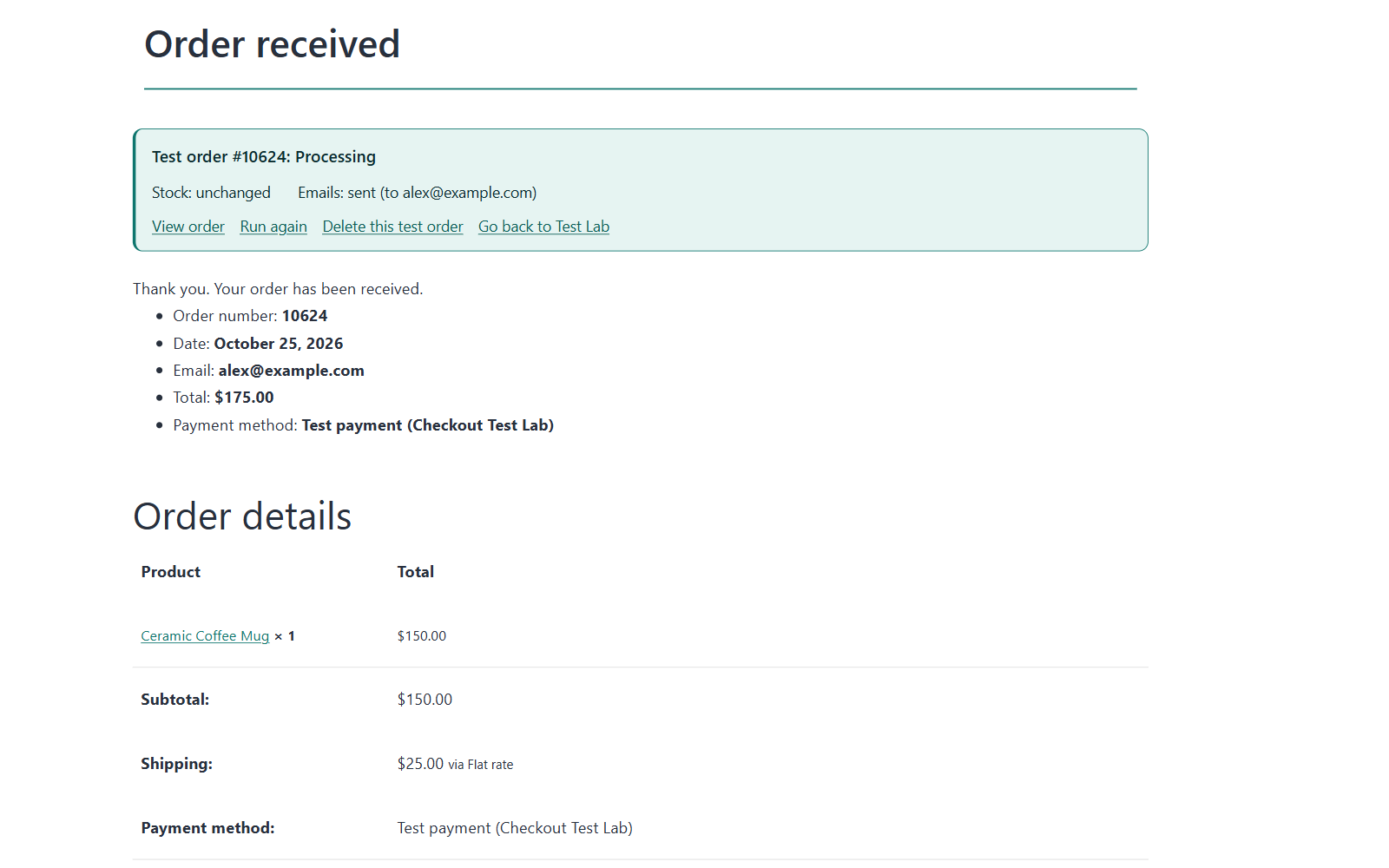
- Read the result cardOn the order confirmation page, a card shows the order number, the result, whether stock changed and where the emails went. From there you can open the order, run the same test again or delete it.
A test ends by itself after one order or 30 minutes, so nothing stays switched on if you forget. Starting a test replaces whatever is in your own cart.
Which emails each order status sends
This is where most test orders fall short. People check that "an email arrived" without checking that it was the right one. Here's what WooCommerce sends by default when an order moves to each status after checkout.
| Order status | Email to you (the store) | Email to the customer |
|---|---|---|
| Processing | New order | Processing order |
| Completed | New order | Completed order |
| On hold | New order | Order on-hold |
| Pending payment | None | None |
| Failed | Failed order | Failed order (recent WooCommerce versions) |
| Cancelled | Cancelled order | Cancelled order (recent WooCommerce versions) |
| Refunded | None for the refund itself | Refunded order |
Three things to keep in mind when you compare your inbox with this table:
- Any email can be switched off. Check WooCommerce > Settings > Emails to see which ones are enabled on your store and where the store copies go.
- An order that was paid first and then refunded or completed sends the paid emails first. In Checkout Test Lab, Completed and Refunded tests are paid before the final step, so you'll also see New order and Processing order.
- Payment and email plugins can add their own emails or change these. If your inbox doesn't match the table, that's worth knowing too.
No email at all? WordPress sends mail through your web server by default, and a lot of that mail is never delivered. Install a mail log plugin to see whether the email was sent, and an SMTP plugin to send it through a proper mail service.
Your test order checklist
Run these tests once before launch, and again after you change your theme, your payment plugin or a major WooCommerce update.
A normal paid order
Processing result. Check both emails, the thank-you page and the order in your admin.
A failed payment
Failed result. Is the error message clear? Can the customer try again without starting over?
A waiting payment
On hold result, as with bank transfer. Do the payment instructions appear in the email?
A refund
Refunded result. Does the customer's refund email show the right amount?
Stock
Test with stock changes switched on, using a product that tracks stock. The count should drop by one.
Another country
Change the customer's country and postcode. Are shipping and tax still right?
Cleaning up test orders
Test orders are real WooCommerce orders. Until you delete them, they show up in your order list, your sales reports and Analytics, and they count towards coupon usage. Ten test orders can make a quiet week look like a good one.
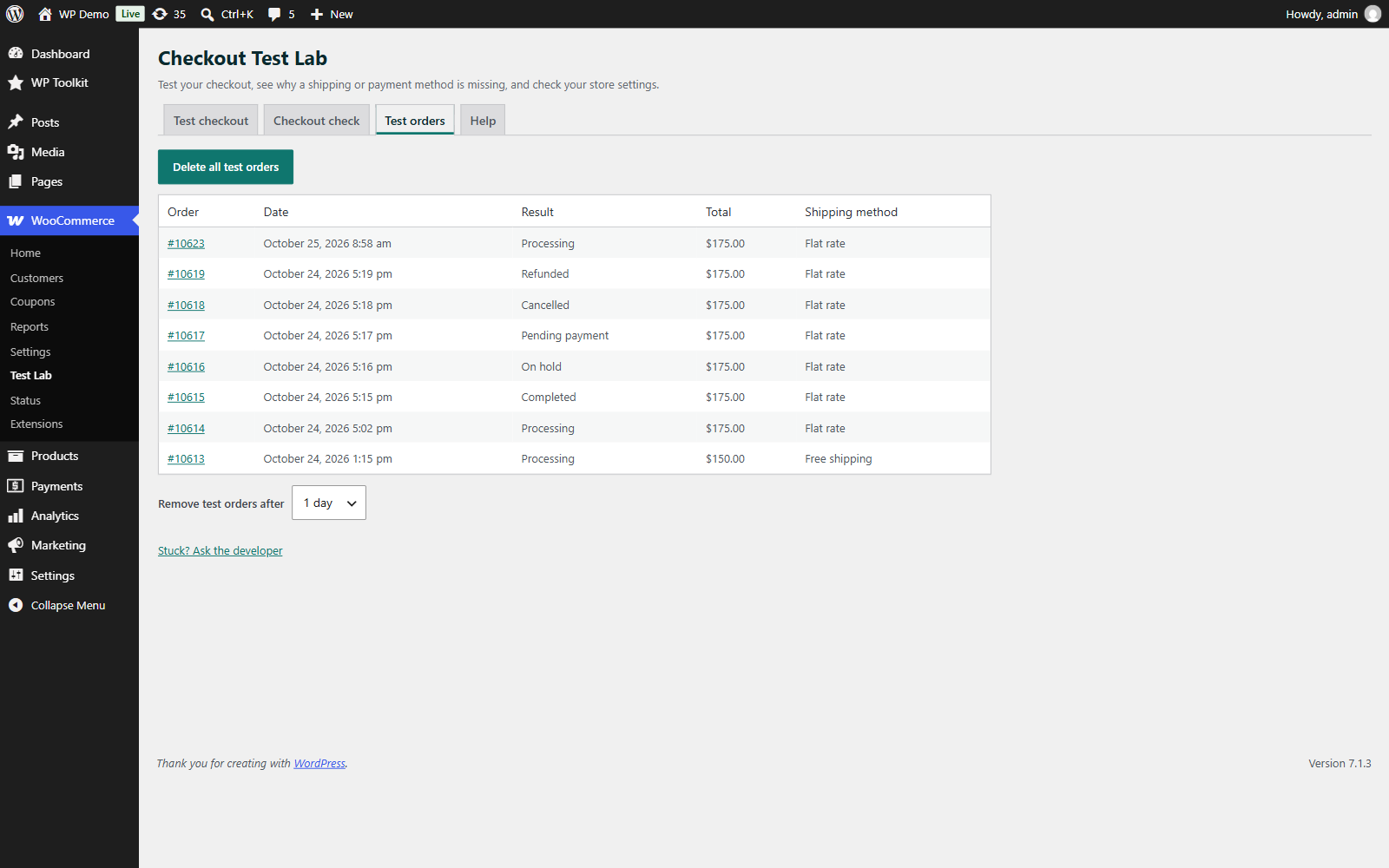
Without a plugin, you can select them in WooCommerce > Orders and move them to the bin. Checkout Test Lab marks every test order, lists them on its Test orders tab and deletes them all with one button. By default, it also removes test orders automatically after a day. It never touches an order it didn't create.
Bonus: when a shipping method isn't showing
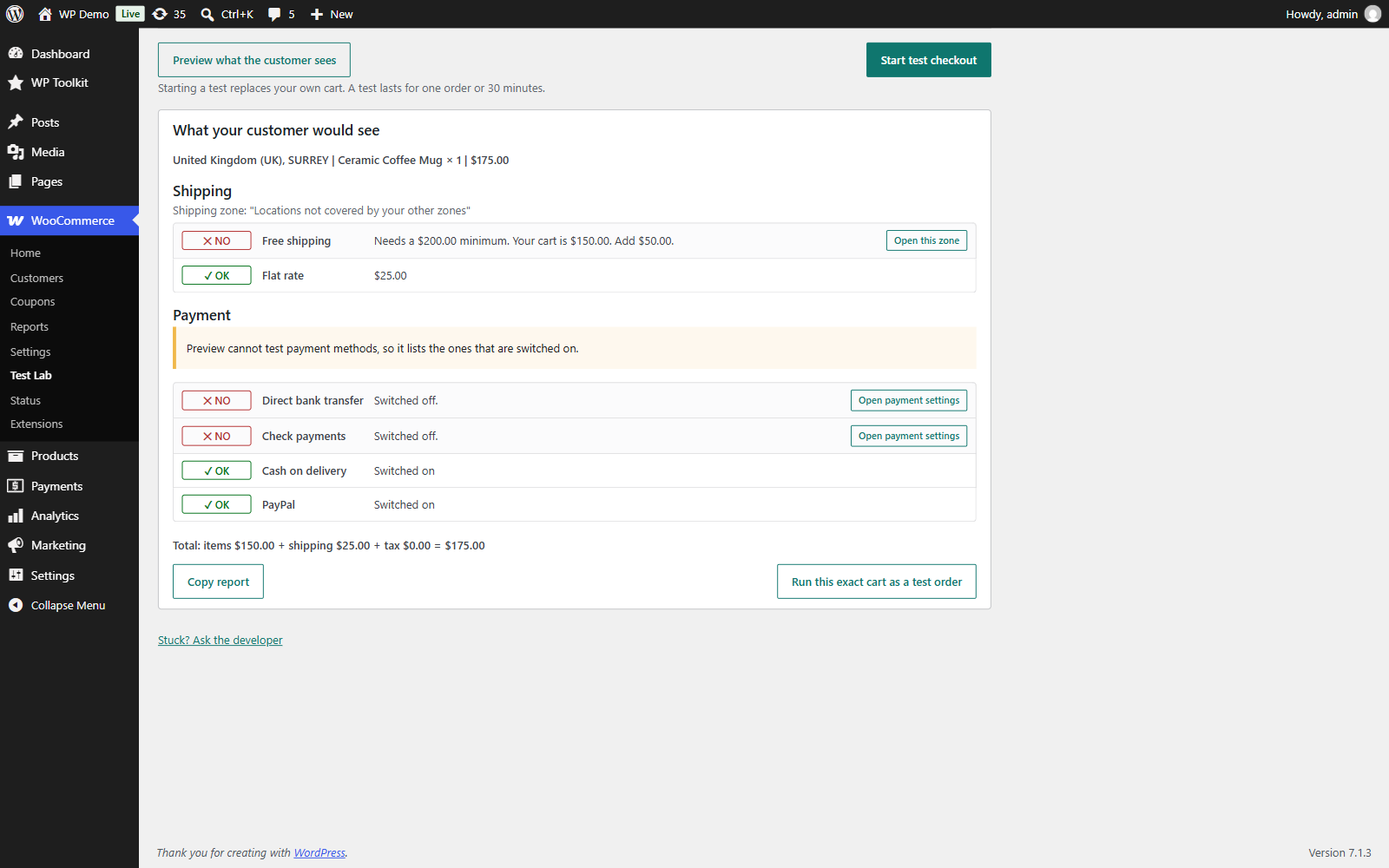
Sometimes a test order shows a different problem: a shipping method you set up never appears at checkout. The usual causes are a free shipping minimum that the cart doesn't meet, a method switched off in its zone, or an address that doesn't match any shipping zone.
Checkout Test Lab has a Preview button for this. Enter a cart and an address, and it shows which shipping methods a customer would get and why each missing one is hidden, without placing an order. Its Checkout check tab also runs twelve read-only checks for settings that stop customers paying, such as guest checkout switched off or a country you sell to with no shipping zone.
What a test order can't tell you
A test order is a strong check, but be clear about what it doesn't cover:
- It doesn't prove a real card payment works. A test payment method skips your payment provider. Use the gateway's own test mode on a staging site for that.
- Cached pages can fool you. If your cart and checkout pages are cached, tests may behave differently from a real visit. Exclude Cart, Checkout and My account from your caching plugin.
- It shows today's setup, not tomorrow's. A plugin update can change your checkout. Run a quick test after big updates.
Test your checkout before your customers do
Checkout Test Lab is free on WordPress.org. One button gives you a private test checkout on your real checkout page.
- Seven payment results, including failed and refunded
- Customers never see the test payment method
- Works with classic checkout, block checkout and HPOS
- No data leaves your site, no account, no tracking
Requires WordPress 6.5, PHP 8.0 and WooCommerce.
FAQ
Can I place a WooCommerce test order on a live store?
Yes, as long as customers can't use the method you test with. Check payments and gateway test mode affect everyone while they're on. A coupon restricted to your email, or a test payment method that only store managers can see, is safe on a live store.
How do I test a failed payment in WooCommerce?
Either use your gateway's test mode with one of its "declined" test card numbers, ideally on a staging site, or use a test-order plugin that lets you choose a failed result. In both cases, check the error message the customer sees and whether they can try again.
Do test orders show up in WooCommerce reports?
Yes. They're real orders, so Processing and Completed test orders count in sales reports and Analytics until you delete them. Delete them when you're done, or use a plugin that removes them automatically.
Does a test order reduce stock?
Normally, yes. WooCommerce reduces stock when an order reaches On hold, Processing or Completed, and puts it back when an order is cancelled. Checkout Test Lab leaves stock unchanged by default; switch that off when you want to test stock.
Why didn't I get the order email after my test order?
First check that the email is enabled in WooCommerce > Settings > Emails, and look in your spam folder. If it still isn't there, your server probably isn't delivering mail. A mail log plugin shows whether WordPress tried to send it, and an SMTP plugin fixes delivery in most cases.
Is Checkout Test Lab really free?
Yes. It's free on WordPress.org, with no paid version, no account and no data sent anywhere.

